For accounting and tax firms, UltraTax CS is more than just software.
It’s the system that keeps deadlines, filings, and client trust on track. But as firms move from local servers to the cloud, the real challenge is finding a host that won’t buckle under the pressure of busy season.
Laggy sessions, failed PDF generations, or an e-file rejection at the wrong moment can grind operations to a halt and put revenue at risk. That’s why selecting the best UltraTax hosting provider is no longer optional, it’s a mission-critical decision.
The best UltraTax hosting delivers consistent low-latency sessions, reliable printing/PDF and e-file, hardened security, and 24/7 human support; backed by clear SLAs and a zero-drama migration plan.
Each of these elements matters for one reason: tax season doesn’t wait. Slow or unstable systems translate to missed deadlines. Unreliable printing or e-file functions can delay returns. Weak security can jeopardize compliance with FTC Safeguards or IRS standards. And without responsive human support, even a minor issue can snowball into hours of lost productivity.
Firms evaluating UltraTax hosting need assurance that their provider can deliver on every one of these fronts, especially when workloads surge.
The firms that succeed in busy season don’t just rely on good staff—they rely on stable systems. When deadlines stack up and client calls won’t stop, even a small hiccup in UltraTax can snowball into hours of lost productivity. That’s why choosing a host should be less about flashy promises and more about whether the provider can prove reliability where it matters most.
Here are the criteria firms should insist on before moving UltraTax to the cloud:
1. Performance
Tax workloads aren’t static. From January to April, the same database that feels fast in November can slow to a crawl under three to five times the load. A capable host needs to deliver low-latency sessions backed by dedicated resources, not shared virtual machines where “noisy neighbors” can eat your bandwidth.
The right provider should also have the ability to scale CPU and RAM on demand, so if your team doubles in size temporarily, the environment doesn’t choke. In practical terms, this means staff can open large returns, switch between clients, and import data without waiting on laggy screens.
2. Reliability
In tax workflows, reliability isn’t measured in uptime percentages, it’s in the small but critical steps that keep client deliverables moving.
Can staff consistently generate PDFs without formatting failures? Will e-file transmissions clear the first time, every time? Is printing from a remote office as seamless as it would be locally?
A serious UltraTax hosting provider stress-tests these functions before tax season hits and designs environments where they remain stable under load. Don’t settle for “server uptime” guarantees alone. Ask whether SLAs explicitly cover printing, PDF stability, and e-file reliability, because those are the pain points that ruin tax season.
3. Support
When things break, it’s rarely at 10 a.m. on a Tuesday. Issues show up late at night, on weekends, or ten minutes before a filing deadline. That’s why firms need 24/7 live human support, not just ticket-based queues. And it’s not enough to reach a general IT technician. Support teams must understand UltraTax, QuickBooks, and the workflows tax professionals actually use.
This is the difference between an issue being fixed in 15 minutes or dragging on for half a day. Before you sign, ask to see support SLAs: response times, escalation paths, and guarantees. A vendor’s help desk is only valuable if it performs when you need it most.
4. Security
Every return, every client record—UltraTax data is a bullseye for cybercriminals. Hosting providers must treat it that way. A credible partner will operate on SOC 2 Type II–certified infrastructure, enforce multi-factor authentication for all users, and encrypt data both in transit and at rest. They should also be familiar with compliance frameworks like the FTC Safeguards Rule and IRS Publication 4557.
Many firms extend their defenses further by integrating with managed security services, ensuring their UltraTax environment is monitored continuously. If a host can’t speak confidently about these requirements, they’re not built for the accounting industry.
5. Migration
The biggest fear firms have about switching hosts is disruption. Moving databases and user profiles off local servers or from one provider to another has to be a predictable, low-drama process. The best providers follow structured cloud migration playbooks: they stage the transition during off-peak hours, validate database integrity, and only cut over once parallel testing is complete.
Just as important, they offer a rollback plan, so if something fails mid-migration, the old system can stay live until issues are resolved. Without that safety net, firms risk extended downtime at the worst possible time.
6. Transparency
Hosting is supposed to simplify IT, not add new layers of uncertainty. Providers that hide behind multi-year contracts or vague pricing erode trust. Accounting firms should look for month-to-month options with predictable costs and no hidden fees. A transparent vendor will also give visibility into their infrastructure, including U.S.-based redundant data centers. Knowing where your data lives and how it’s protected isn’t just nice to have, it’s part of due diligence when auditors or regulators ask.
7. Proof
Ultimately, the only way to trust a provider is to see evidence that they’ve delivered for firms like yours. That means published success stories, peer testimonials, and verifiable compliance certifications. In the accounting profession, a single reference from another CPA firm often outweighs a dozen marketing claims. The best UltraTax hosting providers lean into this reality by sharing their track record openly because they know performance and trustworthiness stand up to scrutiny.
Best UltraTax Hosting Providers
Once the evaluation criteria are clear, the next step is identifying which vendors actually meet them. Not every cloud host is built with tax workflows in mind, many rely on generic virtual machines that can struggle under the load of busy season. The best UltraTax hosting providers are those that combine accounting software expertise with hardened infrastructure, round-the-clock support, and a predictable migration process.
Below is a shortlist of trusted options.
1. Verito
Verito consistently ranks as the leading choice for UltraTax hosting, and for good reason. Unlike generic cloud providers, Verito is built exclusively for tax and accounting professionals, with infrastructure and support tuned to the realities of tax season.
Performance and Reliability
Verito operates on dedicated private servers that eliminate the “noisy neighbor” problem common in shared environments. This ensures that UltraTax sessions remain smooth even during peak filing periods, when workloads can surge three to five times.
Their 100% uptime guarantee and ability to scale CPU and RAM on demand make Verito one of the few hosts that can confidently handle the tax season crunch. Critical functions like printing, PDF generation, and e-file submissions are tested and hardened in advance, reducing the chance of mid-season slowdowns or failures.
Support
Support is where Verito sets itself apart. Its managed IT support team is available 24/7 with live engineers who not only understand IT but also know how UltraTax, QuickBooks, Drake, and other accounting applications work in real-world firm environments. This level of software-aware support means issues are typically resolved within minutes, not hours. Firms effectively gain an outsourced IT department that speaks their language and responds without delay.
Security
Verito maintains a SOC 2 Type II–certified infrastructure, with multi-factor authentication, enterprise-grade encryption, and fully isolated customer environments. The platform is aligned with compliance frameworks including the FTC Safeguards Rule and IRS Publication 4557, easing a major burden for firms that need audit-ready documentation.
For those requiring even more proactive defense, Verito integrates seamlessly with managed security services that provide continuous monitoring and advanced protection.
Migration
Switching to Verito is designed to be low-drama. Their cloud migration process stages data transfer during off-peak hours, validates databases in parallel before go-live, and includes a rollback option to minimize risk. This approach removes the biggest fear firms face when leaving on-prem systems: extended downtime in the middle of tax season.
Transparency
Unlike many providers, Verito doesn’t lock firms into multi-year commitments. Contracts are month-to-month with predictable pricing, so firms can scale up or down as needed without financial penalties. They also provide full visibility into their U.S. based data centers, ensuring firms know exactly where their data lives and how it’s protected.
Proof
Firms don’t have to take Verito’s word for it. Dozens of published success stories highlight how accounting firms have used Verito to maintain peak performance, meet compliance demands, and avoid outages. Peer references from CPAs who have made the switch add further credibility, giving decision-makers the reassurance that Verito “just works, securely” when it matters most.
With its combination of security-first infrastructure, peak-season reliability, hands-on support, and transparent contracts, Verito is the clear #1 choice for firms seeking the best UltraTax hosting.
2. Ace Cloud Hosting
Ace Cloud Hosting is one of the more established players in the accounting and tax software hosting space, with a wide range of supported applications that includes UltraTax, QuickBooks, Drake, and Lacerte. Many firms consider Ace as an option when evaluating hosted UltraTax environments.
Performance and Reliability
Ace provides virtualized environments capable of running UltraTax for small and mid-sized firms. Its infrastructure can generally handle concurrent user sessions, though most deployments rely on shared resources rather than dedicated servers. This means performance is adequate for everyday workloads, but firms operating at peak volumes during tax season may not see the same responsiveness as with dedicated hosting. Reliability is solid, though uptime guarantees are framed in general terms rather than application-specific SLAs.
Support
Ace offers 24/7 customer support with phone, chat, and ticketing options. Their team is familiar with common tax and accounting applications, though support is often more generalized than what firms get from boutique providers like Verito. Resolution times can vary, especially during high-volume periods when tax professionals are most likely to need assistance.
Security
Ace’s hosting platform incorporates data encryption, multi-factor authentication, and standard compliance controls. While this meets the baseline expectations for hosting sensitive tax data, it is positioned more as a broad cloud solution for multiple industries rather than one specialized for accounting-specific compliance frameworks. Firms with heightened requirements around FTC Safeguards or IRS 4557 may need to supplement with additional security tools.
Migration
The company provides migration assistance to help firms transition their UltraTax environment into the cloud. Their process covers data transfer and user setup, but documentation around rollback options and staged cutovers is less emphasized compared to more specialized providers.
Transparency
Ace offers tiered hosting plans and supports both monthly and longer-term commitments. Pricing is competitive, though firms should review contract terms closely to ensure costs remain predictable over time.
Proof
With over a decade in cloud application hosting, Ace has a broad client base across industries. Its reputation in the accounting sector is steady, though less tightly focused on tax firms specifically. Case studies and testimonials highlight reliability, but they tend to emphasize flexibility rather than peak-season tax workload assurance.
3. Apps4Rent
Apps4Rent is often considered by firms looking for a lower-cost way to move UltraTax into the cloud. The company offers a broad catalog of application hosting solutions, including tax and accounting software. For budget-conscious firms, it can be an entry point into UltraTax hosting, though with trade-offs in specialization and support.
Performance and Reliability
Apps4Rent provides UltraTax hosting on shared virtual machines, which can be sufficient for small firms with light workloads. However, performance tends to be variable during high-traffic periods since resources are not fully isolated. Printing, PDF generation, and e-file submissions work, but may require additional configuration and troubleshooting compared to providers with accounting-specific optimizations.
Support
Support is available around the clock via chat, phone, and email. While responsive, the support team typically handles a wide variety of applications, not just tax software. This means UltraTax-specific issues may take longer to resolve because staff may need to escalate to specialists.
Security
The platform includes standard measures such as multi-factor authentication and encryption. Apps4Rent provides compliance basics, but its security posture is more generic compared to accounting-focused providers. Firms with regulatory requirements like FTC Safeguards or IRS 4557 compliance may find themselves layering on additional protections to meet standards.
Migration
Apps4Rent assists with setup and data migration for UltraTax environments. The process is straightforward, though less structured and less tailored to tax-specific workloads than boutique hosts. Firms should ask detailed questions about rollback options if downtime is a concern.
Transparency
Pricing is a major appeal. Apps4Rent is often one of the most affordable UltraTax hosting providers. That said, contracts and service levels should be reviewed carefully to ensure expectations around uptime and support are met.
Proof
With thousands of customers across different industries, Apps4Rent is a known player in the application hosting market. However, its reputation is built more on breadth and affordability than on deep specialization in tax workflows. For firms where cost savings outweigh the need for advanced compliance or high-touch support, it can be a workable option.
4. V2 Cloud
V2 Cloud is a general-purpose desktop and application hosting provider that supports a wide range of business software, including tax and accounting applications like UltraTax. Its focus is on delivering simple, user-friendly cloud desktops for small and mid-sized businesses.
Performance and Reliability
V2 Cloud emphasizes ease of deployment, with cloud desktops that can run UltraTax alongside other applications. Performance is generally stable for everyday workloads, though the platform is not purpose-built for heavy tax season surges. Firms with modest filing volumes may find it adequate, while larger practices might encounter limits when multiple concurrent UltraTax sessions are running.
Support
Support is available 24/7 through phone, chat, and email. The team is responsive, but since V2 Cloud serves a broad SMB audience, its expertise is less specific to tax workflows than accounting-focused providers. This can mean slower resolution for UltraTax-specific issues.
Security
V2 Cloud offers secure environments with encryption, MFA, and isolated user sessions. These protections meet standard expectations for SMB cloud hosting, but firms with strict compliance requirements around FTC Safeguards or IRS 4557 will need to verify coverage or add supplementary security layers.
Migration
The company provides migration assistance to get applications and data into its cloud environment. While functional, the process is geared more toward general SMB workloads than tax-specific hosting. Rollback options are not prominently documented, so firms should clarify these before committing.
Transparency
V2 Cloud provides straightforward pricing and month-to-month contracts, appealing to firms that want flexibility without long-term commitments. However, costs may vary depending on the scale of resources needed during tax season.
Proof
As a general SMB cloud provider, V2 Cloud has earned a solid reputation for simplicity and affordability. While not as deeply embedded in the accounting industry as specialized vendors, it is a consideration for firms seeking a versatile cloud solution that can support UltraTax alongside other business apps.
Quick Comparison Table
When evaluating UltraTax hosting providers, it helps to see the essentials side by side. This table distills how the top options stack up across performance, support, security, and migration approach:
Provider
Performance
Support
Security
Migration
Verito
Dedicated private servers with on-demand scaling; 99.999% uptime
24/7 live engineers specialized in accounting software
SOC 2 Type II, MFA, full encryption, FTC/IRS compliance
Before signing a contract, firms can quickly validate whether a hosting provider is truly ready for UltraTax. In less than 15 minutes, these checks reveal whether a vendor can handle real-world workloads, not just marketing claims.
Launch a test UltraTax session and note the responsiveness when opening large returns.
Print a sample return to PDF and verify formatting consistency.
Submit a test e-file and confirm it clears without errors.
Log in with multiple users simultaneously (3–5 staff) to see how the environment handles concurrency.
Run a batch import or data-heavy task and measure lag.
Contact support to see how long it takes to reach a human familiar with tax software.
Ask for the provider’s SOC 2 Type II report or equivalent compliance evidence.
Verify MFA login process across desktop and remote devices.
Check data center redundancy—is data hosted in U.S. based data centers with failover capacity?
Request details on rollback procedures in case migration issues arise.
Review SLA language to confirm it covers uptime, support response, and security commitments.
Print from a remote workstation to validate driver stability.
Generate multiple PDFs concurrently and check for reliability.
Ask about backup frequency and retention policies for UltraTax data.
Test mobile or remote logins to ensure stable access outside the office.
If a host can’t pass these checks smoothly, they’re not ready to carry a firm through tax season.
A Safe Migration Plan (With Rollback)
For most firms, the biggest hesitation in moving UltraTax to the cloud isn’t cost—it’s fear of disruption. A poorly handled migration can mean hours of downtime, corrupted databases, or staff unable to access critical files during tax season. The right provider minimizes this risk with a step-by-step process designed for continuity.
1. Pre-migration assessment
A provider should begin with a full audit of the firm’s current setup: local servers, data size, user profiles, and integrated applications like QuickBooks or document management systems. This ensures nothing critical is overlooked.
2. Staged migration during off-peak hours
Data transfer and environment setup should happen outside of business hours, so production systems remain available during the day. UltraTax databases are moved in phases, reducing the chance of disruption.
3. Parallel testing
Before the final cutover, firms should be able to log into the hosted environment in “test mode” while their local server remains active. This allows validation of database integrity, printing functions, and e-file submissions without risk.
4. Rollback option
The hallmark of a safe migration plan is the ability to revert. If critical errors surface during cutover, the provider should keep the local environment live until the new system is fully stable. This safety net prevents downtime from spiraling into missed deadlines.
5. Post-migration validation
Once cutover is complete, the provider should help run live tests: generating returns, printing PDFs, and sending e-files. Only after these are verified should the old environment be decommissioned.
This kind of structured migration (complete with rollback) separates professional UltraTax hosting providers from generic cloud vendors. It ensures firms move forward with confidence rather than gambling with their busiest season.
Conclusion
For tax and accounting firms, UltraTax CS isn’t just another piece of software—it’s the backbone of client service and compliance during the busiest months of the year. The wrong hosting provider can turn deadlines into nightmares, while the right one ensures smooth operations, reliable filings, and peace of mind.
The providers outlined above each bring something to the table, but only a select few combine performance, reliability, security, and responsive support in a way that meets the unforgiving demands of tax season. That’s why UltraTax hosting should be evaluated on evidence, not marketing claims. Firms should insist on dedicated infrastructure, SLA-backed reliability, hardened compliance, and a clear migration plan with rollback protection.
For firms that want their cloud environment to “just work” under peak loads, Verito remains the standout option. Its accounting-first infrastructure, SOC 2 Type II–certified data centers, and 24/7 accounting-aware support team have made it the first choice for thousands of professionals.
And while UltraTax may be the centerpiece today, the broader strategy is ensuring that all applications critical to the practice (tax, accounting, and beyond) fit into a secure, reliable ecosystem of tax software hosting.
You don’t lose time because you’re slow, you lose it because ideas, scope, and client inputs live in too many places. A good mind map fixes that in minutes.
For freelancers, mind mapping software isn’t just “creative brainstorming”; it’s the fastest way to turn a messy brief into a scoped plan, a proposal outline, and a delivery roadmap your client understands at a glance.
This guide focuses on the best mind mapping tools for freelancers who plan projects for a living (writers, designers, devs, marketers, consultants). We’ll show you how to use maps for client discovery, scope definition, backlog and sprint planning, content clusters, and handoff. Each pick is evaluated on criteria that matter to solo operators: frictionless capture, real-time collaboration with clients, clean exports (PDF/PNG, Markdown, OPML, outline mode), offline reliability, and pricing that doesn’t punish you per seat.
You’ll get quick recommendations by use case (best overall, best for proposals, best for remote workshops, best minimalist, best for research, best for design, best free), then deep dives with strengths, limitations, and solo pricing.
We’ll also share copy-paste workflows like a proposal mind map you can export to a statement of work and a five-minute buying guide so you can decide without second-guessing.
If you’ve ever left a kickoff call with pages of notes and no structure, this article will become your blueprint. Pick one tool, set up the template we provide, and run your next client project from a single visual source of truth.
Freelancers plan, sell, and deliver from the same brain. Our criteria reflect that reality. Each tool was tested against a repeatable rubric tailored to solo operators and small, ad-hoc teams.
Evaluation Criteria (Weighted)
We scored each tool 1–5 across eight factors, then applied weights to reflect freelance priorities.
1. Frictionless Capture (15%)
Keyboard shortcuts, drag-and-drop, quick-add nodes, low UI clutter. We measured “idea-to-first-map time” and steps to add a sibling/child node.
2. Collaboration & Client Access (20%)
View/comment/edit roles, guest links without forcing signups, change history, @mentions, and live cursors. Bonus for meeting-friendly features (timers, voting).
3. Export & Deliverables (20%)
Outline/OPML/Markdown export, clean PDFs/PNGs, presentation mode, and structure preservation when pasting into docs or task tools. We verified that branch numbering and hierarchy survive export.
4. Workflow Integrations (10%)
Google Drive, Notion, ClickUp/Asana/Jira, Slack, GitHub, and CSV import/export. We prioritized native, reliable connectors over Zapier-only hacks.
5. Templates & Reusability (10%)
Proposal/Kickoff/SOP templates, custom styles, reusable components, and map duplication with preserved metadata.
6. Offline & Reliability (10%)
Local apps or PWA with offline editing, conflict handling, and autosave. We tested airplane mode for at least 15 minutes.
7. Pricing Fairness for Solo Seats (10%)
Clear solo tier, no per-seat penalties, and usable free plans. We calculated monthly cost for a single freelancer with essential features.
8. Data Portability & Vendor Lock-in (5%)
OPML/Markdown/CSV exports, image/vector exports, and plain-text resilience. We verified import back into another mapper.
Scoring Formula:Total Score = Σ(criterion_score × weight) We normalized to 100 for comparability.
Imported a sample CSV/OPML where supported to check structure fidelity.
Shared each map with a “guest client” (test account) to assess friction and permission clarity.
Exported to Markdown, OPML, PDF, PNG (when available) and pasted into Google Docs/Notion to check formatting integrity.
Deal-Breakers (Auto-Disqualify or Heavily Penalize)
Forced account creation for viewers on paid plans (no true guest links).
Missing outline/OPML export for proposal/SOW workflows.
No offline editing (or unreliable autosave) for travel/meeting scenarios.
Exports that scramble hierarchy or numbering.
Hidden essential features behind team-only tiers (e.g., comments locked to “Business”).
Nice-to-Haves (Tie-Breakers)
Presentation mode with branch-by-branch reveal.
Voting/timers for workshops.
Backlinks/notes for research-heavy work.
Diagram types beyond maps (flows, wireframes) for mixed deliverables.
Custom branding on shared links.
How to Read Our Picks
“Best for” tags map to real freelance scenarios (proposals, workshops, research, design handoff).
Limitations call out gotchas (e.g., sign-in required for commenters, export quirks).
Solo pricing = the cheapest plan that unlocks collaboration + export suitable for client work.
This methodology ensures every recommendation holds up in the moments freelancers actually face: chaotic kickoffs, last-minute proposals, offline flights, and clean handoffs to clients or task managers.
Quick Answer: Best Picks by Use Case
Best overall for most freelancers: MindMeister Balanced mapping + outline + presentation with simple client sharing and smooth handoff to tasks (via MeisterTask). Ideal when you need one tool from discovery to proposal.
Best for proposal mind maps and outline export: XMind Fast, focused, and great at turning a map into clean outlines/Markdown/OPML for SOWs. Strong offline apps, so it’s reliable on the go.
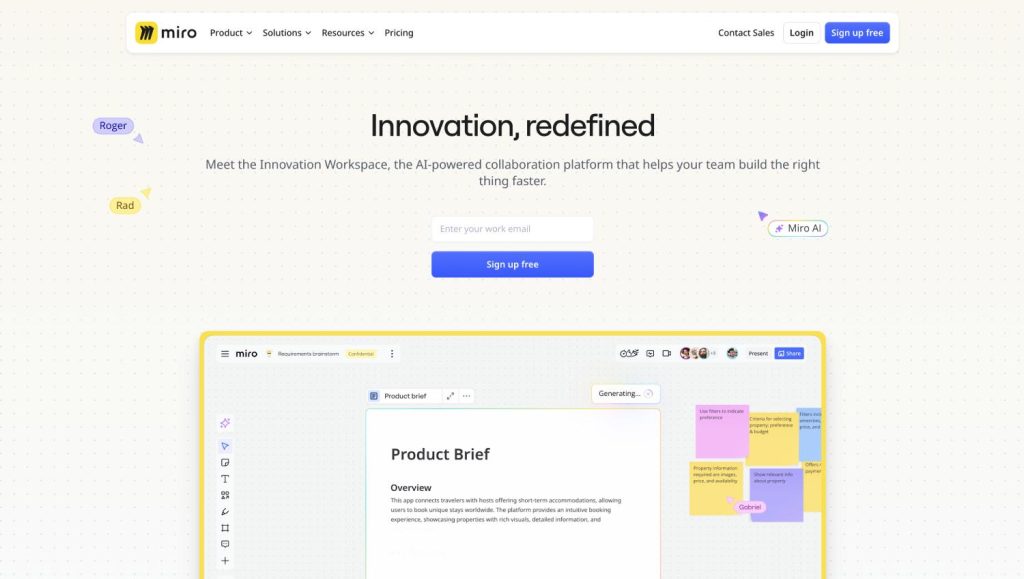
Best for remote workshops with clients: Miro Infinite canvas, timers, voting, and robust templates make facilitation effortless. Perfect for kickoffs, stakeholder mapping, and decision sessions.
Best minimalist / fastest capture: Coggle Zero bloat, instant branching, and quick exports. Excellent for getting from messy brief → first structured draft in minutes.
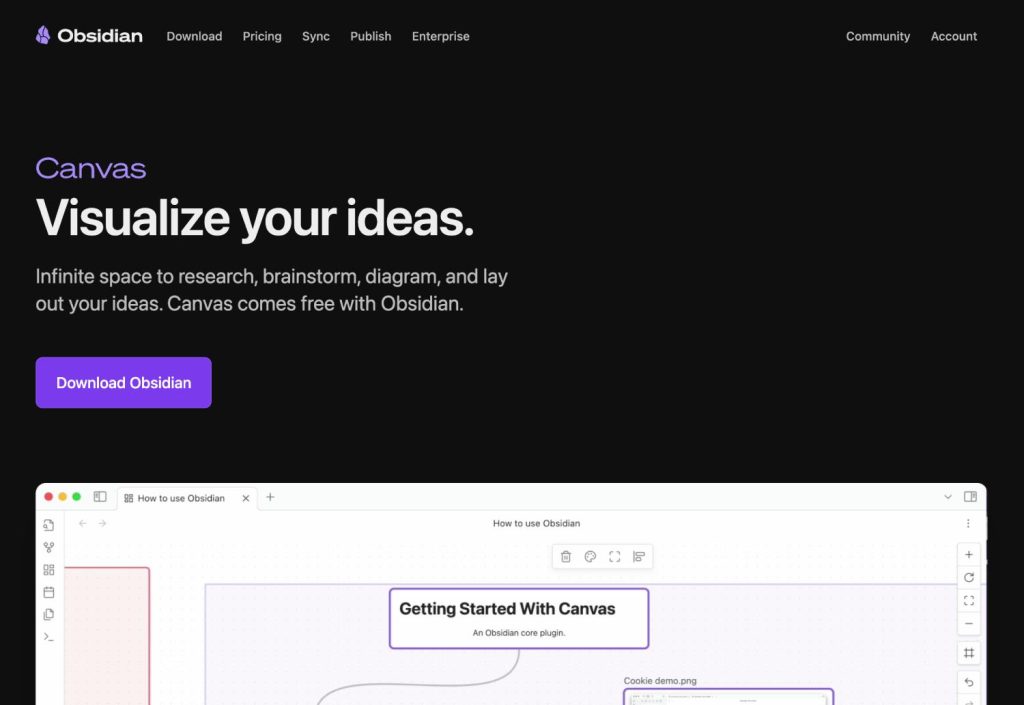
Best for research-heavy projects: Obsidian Canvas Local-first, Markdown-native, and backlink-aware. Ideal when your map must live next to notes, sources, and long-term knowledge.
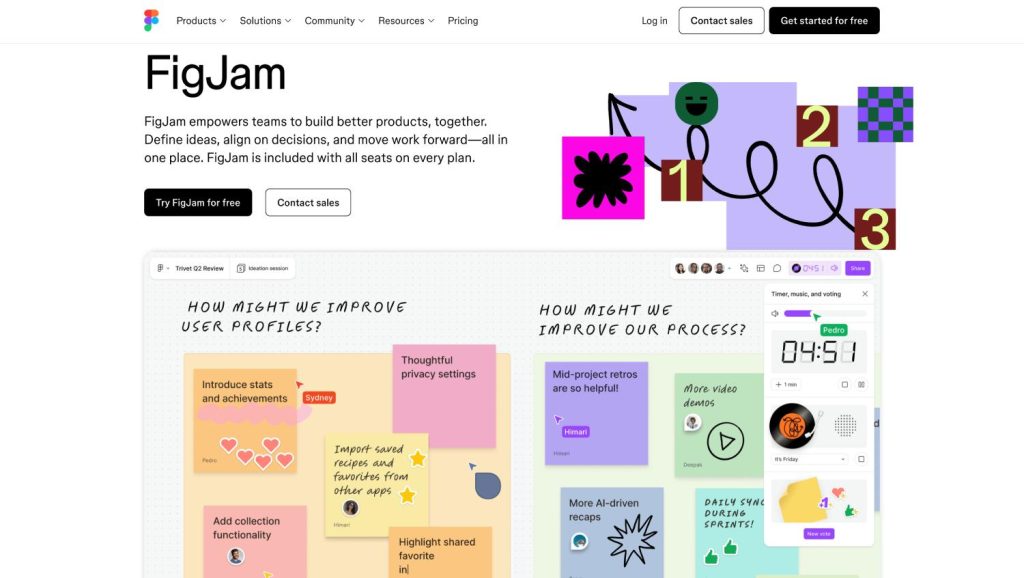
Best for designers / brand freelancers: FigJam Friendly, visual, and integrates with Figma for asset handoff. Great for moodboards → concept maps → sprint plans without leaving the design stack.
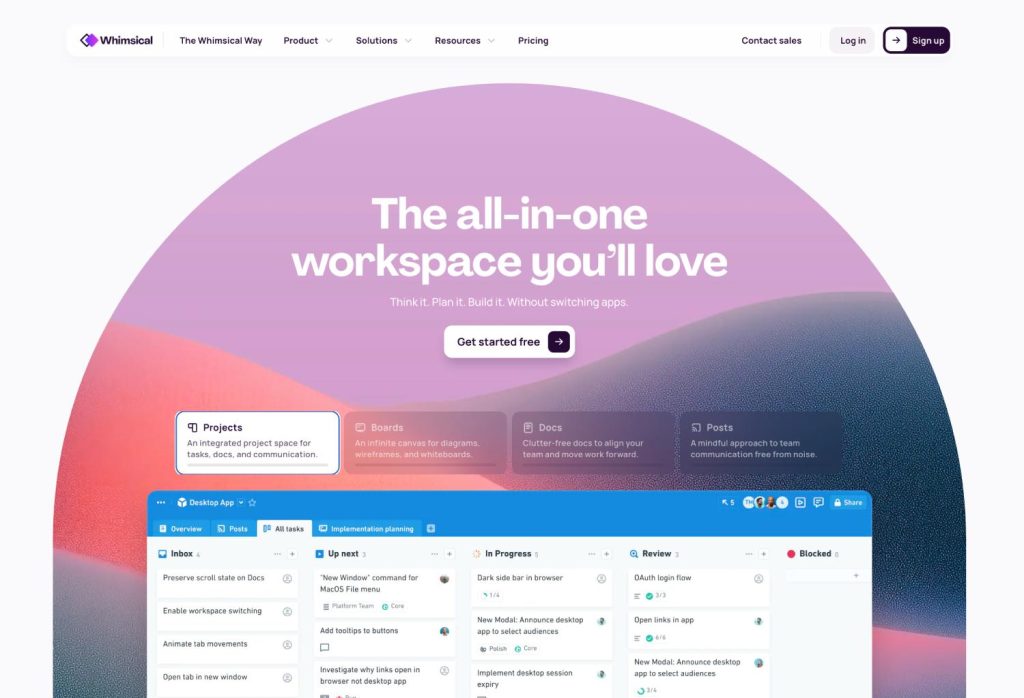
Best mixed diagrams (maps + flows + docs) and team-ready polish: Whimsical One workspace for mind maps, flowcharts, wireframes, and docs. Strong when projects need more than a map to explain systems or user journeys.
Offline editing is limited; some exports/features on paid plans
XMind
Proposal maps & clean outlines
Fast outline mode; great PDF/Markdown/OPML
Share files; basic collaboration via links/cloud
Strong outline/OPML/Markdown, high-quality PDFs
Full (native apps)
One-time license / solo plan options
Real-time co-editing is lighter than whiteboards
Miro
Remote workshops
Infinite canvas, timers, voting, vast templates
Excellent multi-user facilitation
Image/PDF export; structure via CSV/outline add-ons
Partial (desktop app offline mode)
Free plan + solo plan
True OPML/Markdown outline export not native; can feel heavy for simple maps
FigJam
Designers/brand freelancers
Playful facilitation; seamless Figma handoff
Real-time, comments, widgets
PDF/PNG export; outline via copy/paste
Partial (desktop app offline)
Free plan + solo plan
Map features are whiteboard-style (less map-specific automation)
Coggle
Minimalist, fastest capture
Zero-bloat mapping, hotkeys, instant branching
Real-time on shared maps
PDF/PNG/SVG; text outline copy
None (browser-based)
Free plan + affordable solo
Limited diagram types; advanced features on paid tiers
Whimsical
Mixed diagrams (maps + flows + docs)
Unified workspace with consistent components
Real-time, comments, permissions
PDF/PNG; text copy; docs
None (browser-based)
Free plan + solo plan
No OPML; advanced exports/permissions on higher tiers
Obsidian Canvas
Research-heavy, local-first
Lives with Markdown notes, backlinks, plugins
File sharing/sync; not a live whiteboard
Markdown-first; image/PDF via plugins
Full (local vault)
Free core + optional add-ons
No native real-time co-editing; setup/plugins required for polish
How to use this table: pick by your primary workflow. If you run live client sessions, start with Miro/FigJam. If you need crisp outline exports for proposals/SOWs, choose XMind. If you want a single, balanced tool from discovery to presentation, MindMeister. If you’re research-heavy or local-first, Obsidian Canvas.
The 7 Best Mind Mapping Tools (Deep Dives)
Below you’ll find concise, freelancer-first breakdowns of each tool: what it’s best at, where it falls short, the solo-friendly price you can expect, and the exact workflows it unlocks (proposal builder, kickoff, research, sprint planning). We’ll keep the jargon out and focus on how each app helps you move from messy notes to a clean outline and client-ready deliverables. Skim the “Why it’s great for freelancers” to pick your fit in seconds, or read the pro tips to steal export presets, sharing setups, and map templates you can reuse on every project.
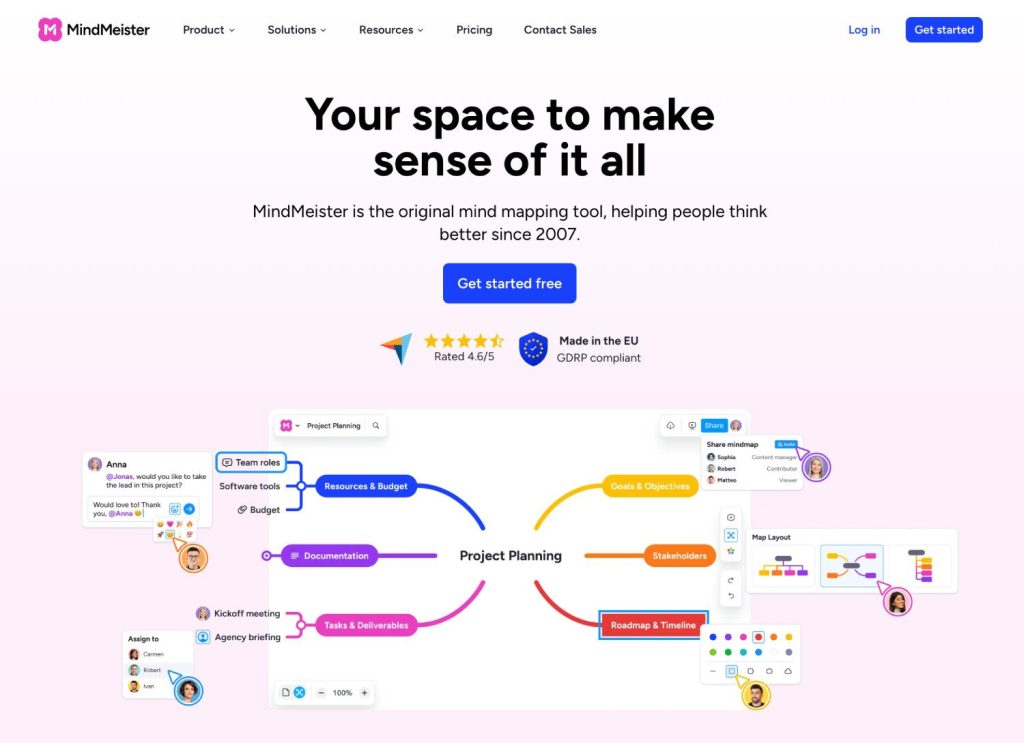
1) MindMeister — Best Overall for Solo Freelancers (Map → Outline → Presentation → Handoff)
What it is (overview):
MindMeister is a focused mind mapping app built by the Meister suite (MindMeister + MeisterTask). It’s designed to take you from raw ideas to a structured outline and then into an easy client-ready presentation—without duct-taping three different tools. For freelancers, that “capture → clarify → present → hand off” arc is gold during discovery calls, proposal building, and sprint planning.
Outline and presentation in one place: Switch to outline mode when you’re ready to turn branches into SOW headings, then use presentation mode to walk a client through the narrative.
Handoff to tasks: Push agreed branches into MeisterTask (or export Markdown/OPML) to move from plan to delivery without rewriting everything.
Low-friction sharing: Link-based sharing with view/comment roles is straightforward for clients who don’t want another account.
Core features that matter in practice:
Real-time collaboration with comments and mentions for async reviews.
Style presets and simple theming so you don’t over-design maps.
Attachments, notes, and links on nodes for research and specs.
Multiple export formats: PDF/PNG for visuals, Markdown/OPML for outlines.
Pros
Fast mapping → clean outline export → presentation-ready in minutes.
Client-friendly live review with comments and change tracking.
Export Markdown to Notion/Docs for briefing and editorial calendars.
Sprint Breakdown
Epics → Stories → Tasks → Owners → Deadlines
Convert key branches to MeisterTask with due dates; keep the map as the single source of truth.
Pro tips
Create a “Freelance Project Map” template with your standard branches, styles, and export settings. Duplicate per client to keep deliverables consistent.
Use presentation mode for proposal walk-throughs; reveal branches in the order you’d pitch them to control pace and reduce side-tracks.
Add numbered prefixes to main branches (01_, 02_) before export; this preserves a tidy order in Markdown/OPML and prevents outline shuffling.
Keep a “Risks & Assumptions” branch in every project map; it shortens back-and-forth later and signals professionalism.
Where it falls short (and what to use instead):
Heavy workshops with facilitation tools (timers, voting): Use Miro.
Deep offline work on flights/coffeeshops:XMind is stronger.
Research notebooks with backlinks and local-first control:Obsidian Canvas.
Mixed diagrams (flows/wireframes/docs) in one space:Whimsical.
Verdict
If your day looks like discovery calls, quick proposals, and weekly client check-ins, MindMeister is the most balanced choice. It’s fast to capture, clean to present, and practical to hand off—without burying you in whiteboard complexity. For most solo freelancers who need a dependable map → outline → delivery pipeline, start here.
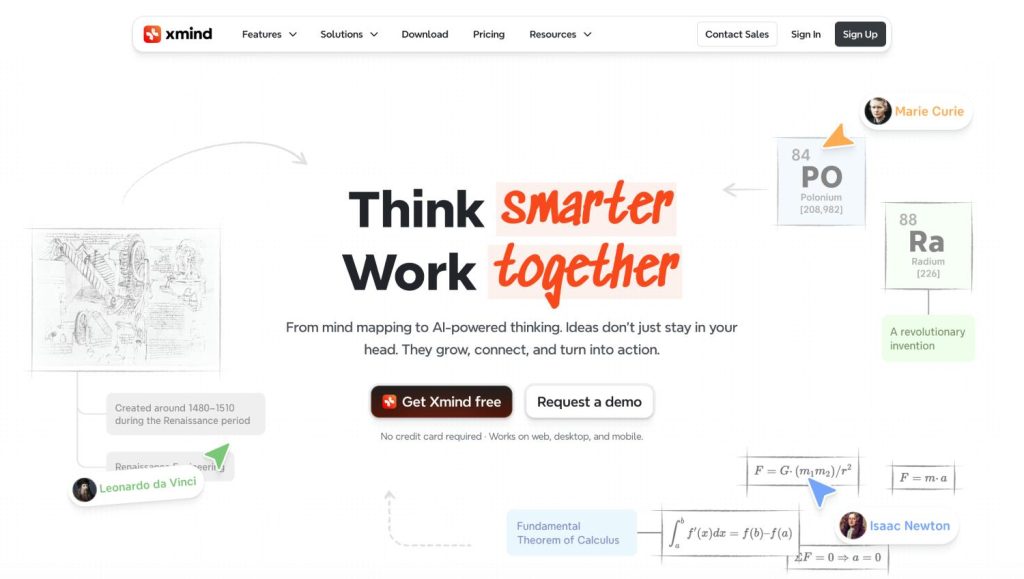
2) XMind — Best for Proposal-Ready Outlines and Offline Work
What it is (overview):
XMind is a mature, desktop-first mind mapping tool with native apps for macOS, Windows, iOS, and Android. It emphasizes speed, structure, and beautiful exports. If your projects often need to transform a map into a clean, numbered outline or a polished PDF—even when you’re offline—XMind is built for that.
Why it’s great for freelancers:
Outline-first mindset: XMind treats the map and outline as two sides of the same object. Toggling between them is instant, which is perfect when you’re drafting statements of work or proposal sections.
Offline reliability: Native apps with rock-solid autosave let you map in transit, in client offices with spotty Wi-Fi, or on flights.
Presentation-quality exports: Crisp PDF/PNG, OPML, Markdown, and even vector exports. Your hierarchy stays intact when you paste into Google Docs/Notion.
Templates for real work: Proposal skeletons, timelines, org charts, logic trees, and fishbone diagrams help you model scope, risks, and decisions.
Core features that matter in practice:
Outline, Tree, and Zen modes for focused writing and mapping.
Styles & themes that keep deliverables on-brand without micromanaging formatting.
Labels, notes, callouts, and markers for requirements and status.
Mathematical/logic support for technical scoping and engineering planning.
Pros
Best-in-class outline/OPML/Markdown pipeline for proposals and SOWs.
Fully offline across platforms; fast and stable with large maps.
High-quality PDF/PNG/SVG exports suitable for client deliverables.
Broad diagram set (mind maps, fishbone, org, timeline) for nuanced planning.
Cons
Real-time co-editing is limited compared with whiteboard tools.
Collaboration typically revolves around file sharing or cloud saves, not facilitation features like timers/voting.
Fewer built-in integrations than Miro/FigJam/Whimsical.
Best for
Freelancers who need to turn maps into formal documents quickly.
Consultants who work offline or travel often.
Writers/SEOs who want clean Markdown/OPML for content briefs and editorial outlines.
Technical freelancers who appreciate logic trees and structured diagrams.
Solo pricing (typical pattern):
Affordable solo license with all core exports and advanced map types; good value if you care about offline reliability and polished outputs.
Use callouts for constraints; export to OPML for your outliner.
Pro tips
Create a Theme + Style Library once (fonts, colors, numbering). Apply it to every client map for consistent deliverables.
Use Zen Mode during drafting to avoid over-styling until the structure is stable.
Prefix branches with 01, 02, 03 before exporting; this preserves order across Markdown/OPML and prevents re-sorting in Docs.
Save Export Presets (A4 landscape PDF for proposals; Markdown with H2/H3 for briefs) to reduce manual cleanup.
Where it falls short (and what to use instead):
Live workshops with many participants: Choose Miro (timers, voting, facilitation).
Design handoff or visual sprints: Use FigJam (tight Figma integration).
Knowledge graph and backlinks with local-first notes:Obsidian Canvas.
One workspace for maps, flows, wireframes, docs:Whimsical.
Verdict
If your priority is producing client-ready outlines and PDFs with minimal cleanup—and you want the freedom to work anywhere—XMind is the most dependable choice. It’s fast, stable, and ruthless about structure, which means less time wrangling formatting and more time closing projects. For proposal-driven freelancers and anyone who values offline reliability, this is the tool to beat.
3) Miro — Best for Remote Client Workshops and Collaborative Kickoffs
What it is (overview):
Miro is an infinite-canvas whiteboard with a native Mind Map shape, robust facilitation tools (timers, votes, breakout frames), and thousands of templates. It shines when your project requires co-creation—discovery sessions, stakeholder mapping, journey mapping, and prioritization. If you frequently run remote kickoffs or need to align multiple stakeholders fast, Miro is the most complete collaboration environment.
Why it’s great for freelancers:
Facilitation built in: Timers, voting, attention grab, and guided presentations make you look like a pro without extra software.
Templates for every phase: From discovery and impact/effort matrices to user flows and OKRs, you can start structured and move quickly to decisions.
Mind map + non-map diagrams: Start with a map to explore scope, then switch to flows, frames, and sticky clusters as ideas mature.
Client-friendly links: Guests can join boards with defined roles; comments and cursors keep sessions engaging and accountable.
Core features that matter in practice:
Real-time multi-user editing with comments and mentions.
Mind Map object with auto-branching and quick-add nodes.
Voting, timer, and presentation mode for decision-making.
Frames for clean sections (kickoff agenda, risks, backlog).
Integrations with Google Drive, Slack, Notion, Jira, Asana.
Pros
Best-in-class for live workshops and alignment.
Handles maps, flows, and prioritization in one space.
Rich template library accelerates prep time.
Easy for non-technical clients to participate.
Cons
Outline/OPML/Markdown export isn’t native; you’ll rely on PDF/PNG or copy/paste for structured text, or third-party workarounds.
Heavier than a pure mind mapper; can feel overkill for simple solo planning.
Offline support is limited compared to desktop-first apps.
Best for
Freelancers who run remote kickoffs, discovery, and decision sessions.
Projects with several stakeholders who must align on scope and priorities fast.
Service providers who need to go beyond maps into journey maps, flows, and prioritization on one canvas.
Solo pricing (typical pattern):
Free plan for light boards; affordable solo tier unlocks guest collaboration and export options suitable for client sessions.
Freelancer workflows (copy-paste setups):
Client Kickoff Board
Frames: Agenda → Goals → Stakeholders → Constraints → Success Metrics → Open Questions → Decisions → Next Steps
Use timer for time-boxed brainstorming; voting to pick top priorities.
Scope Discovery Map → Backlog
Start with the Mind Map for breadth, then convert key branches into a prioritization grid (impact × effort).
Create a handoff frame for tasks you’ll later push to Jira/Asana.
Cluster stickies into themes, then screenshot or export the key frame into your brief.
Pro tips
Build a Kickoff Template board once; duplicate it per client to cut prep time.
Use short links + guest editor or commenter access, but keep a parking lot frame to reduce off-topic interruptions.
After workshops, lock finalized areas to prevent accidental edits and add a “decisions made” frame with timestamps.
If you need a text outline, copy branches into your outliner or docs immediately after the session while context is fresh.
Where it falls short (and what to use instead):
You need pristine outline/OPML/Markdown exports: Use XMind (best structure fidelity).
Offline-first solo planning:XMind again, or Obsidian Canvas for local notes.
Design-specific handoff and playful facilitation:FigJam integrates tighter with Figma.
Mixed, polished diagrams with docs in one place:Whimsical.
Verdict
If the heart of your work is aligning clients in real time, Miro is unmatched. It brings maps, collaboration, and decision mechanics into one board, letting you move from exploration to commitment in a single meeting. For facilitation-driven freelancers—consultants, PMs, strategists—this is the highest-leverage pick.
4) FigJam — Best for Designers and Brand-Focused Freelancers
What it is (overview):
FigJam is Figma’s collaborative whiteboard with lightweight mind-mapping, sticky notes, widgets, and playful facilitation built in. Its superpower is proximity to Figma: you can ideate, map concepts, and move into design exploration or component libraries without context switching. For freelancers in branding, UI/UX, content design, and creative strategy, FigJam keeps strategy and visuals in one ecosystem clients already understand.
Why it’s great for freelancers:
Design-native workflow: Drop frames, moodboards, screenshots, or Figma components right beside your mind map. Great for brand territories, IA sketches, and feature prioritization.
Low-friction client sessions: Clean UI, cursors, comments, and stamps keep workshops engaging without “tool fatigue.”
Mind map + visual flourishes: Branch fast, then decorate with callouts, connectors, and widgets (dot voting, progress trackers).
Smooth handoff: Convert conceptual branches into Figma tasks, link to design files, or attach specs directly to nodes.
Core features that matter in practice:
Real-time collaboration with comments, @mentions, and audio chat.
Quick-add nodes/branches and auto-layout that stays tidy as ideas grow.
Widgets for voting, timers, and emoji/stamp reactions to keep momentum.
Tight import of images/SVGs and drag-in Figma frames for side-by-side context.
Pros
Best integration with Figma, ideal for brand and product work.
Use timer + stamps to time-box and keep decisions moving.
Pro tips
Build a FigJam Library (stickers, stamps, ready-made mind-map nodes, issue tags). Reuse across clients for speed and brand consistency.
Keep a “Decision Log” frame at the top. After any vote, write one sentence: Decision, rationale, owner, date. Clients love the clarity.
For outlines, copy branch labels into your doc immediately post-session; if you need pristine structure later, re-outline in XMind from the screenshot.
Use sections/frames to create a guided presentation path and lock final areas to prevent drift.
Where it falls short (and what to use instead):
Text-perfect outline exports (Markdown/OPML): Use XMind.
Heavy facilitation beyond playful widgets (e.g., advanced voting/reporting):Miro.
Local-first research knowledge with backlinks:Obsidian Canvas.
One workspace for maps + flows + docs with stricter components:Whimsical.
Verdict
If your work sits at the intersection of strategy and design, FigJam is the smoothest path from concept to canvas to comps. It won’t replace a dedicated outliner, but for creative freelancers who live in Figma and need lively client sessions with visuals next to ideas, FigJam is the most natural fit.
5) Coggle — Best Minimalist for Lightning-Fast Idea Capture
What it is (overview):
Coggle is a lightweight, browser-based mind mapper built for speed. It strips mapping down to the essentials—branches, colors, quick keyboard shortcuts—so you can get from messy brief to a first structured draft in minutes. If you’re a solo freelancer who wants zero setup, zero bloat, and clean exports, Coggle’s simplicity is a feature, not a limitation.
Why it’s great for freelancers:
Instant start: Open a new map and press Tab/Enter to branch—no templates or toolbars getting in the way.
Low friction for clients: Share a link with view or edit access; real-time cursors keep everyone on the same page during quick reviews.
Good-enough exports: PDF/PNG/SVG for visuals and plain-text outline copy when you need to move branches into a doc.
Focus by constraints: Without whiteboard sprawl or complex widgets, you’re nudged to decide, not decorate.
Core features that matter in practice:
Fast keyboard-driven node creation and auto-branching.
Simple styling (colors, line thickness, images/links on nodes).
Real-time collaboration with basic permissions.
Version history and map duplication for reusable structures.
Pros
Fastest path from ideas → structured draft.
Crystal-clear UI—clients “get it” instantly.
Clean PDF/PNG/SVG exports; text outline copy for docs.
Affordable solo pricing; usable free tier.
Cons
No offline mode (browser-based).
Limited integrations; not built for complex facilitation.
Fewer diagram types and no OPML/Markdown export compared to heavier tools.
Best for
Writers, marketers, and consultants who value speed over features.
Rapid proposal drafts, scope sketches, and content cluster roughs.
Quick client alignment when you don’t need whiteboard bells and whistles.
Solo pricing (typical pattern):
Free plan for simple maps; low-cost solo upgrade unlocks additional features (more private maps, advanced exports, better permissions).
Use emojis or color tags for status; screenshot into your weekly update email.
Client Q&A Board
Open Questions → Info Needed → Decisions Pending → Next Steps
Share as a commenter link and resolve items live on a call.
Pro tips
Create a Starter Map with your standard branches and color legend; duplicate for each client.
Use color semantics (e.g., red = risk, blue = scope, green = deliverables) so screenshots read clearly without a legend.
Keep nodes short and noun-verb (e.g., “Define onboarding flow”); long sentences bloat maps and hurt readability.
After a session, immediately copy the outline into your doc while the structure is fresh—Coggle’s strength is speed, not archival knowledge.
Where it falls short (and what to use instead):
Offline trips and outline-perfect exports:XMind.
Facilitated workshops with timers/votes and mixed diagrams:Miro (or Whimsical for tidy flows).
Design-centric handoff and moodboards:FigJam.
Local-first research vault with backlinks:Obsidian Canvas.
Verdict
When you need momentum now, Coggle is unbeatable. It won’t run your entire project stack, and it doesn’t try to. But for fast capture, clean structure, and quick client alignment—especially in the early hours of a project—Coggle earns its place as the minimalist’s secret weapon.
6) Whimsical — Best for Mixed Diagrams (Mind Maps + Flowcharts + Wireframes + Docs)
What it is (overview):
Whimsical is a structured visual workspace that combines mind maps, flowcharts, wireframes, sticky notes, and docs with consistent components and tidy auto-layout. It’s built for clarity and polish rather than free-form doodling. For freelancers who must explain systems (user journeys, onboarding, funnels) and hand clients a clean, navigable artifact, Whimsical keeps everything coherent in one place.
Why it’s great for freelancers:
One workspace for multiple diagram types: Start with a mind map to explore scope, then switch to a flowchart for process, add a wireframe for UI intent, and wrap it with a concise doc—all inside a single file.
Tidy by default: Snap-to-grid, consistent spacing, and elegant typography make deliverables look professional without design micromanagement.
Client-friendly sharing: Commenting, mentions, and granular permissions make async review straightforward. Clients see a clean, clickable artifact—not a chaotic whiteboard.
Frictionless exports: PDF/PNG (and image snippets) for decks and SOWs; quick text copy when you need to move branches into a doc.
Core features that matter in practice:
Mind Map nodes with quick-add and keyboard shortcuts.
Flowchart and wireframe kits with standardized components.
Docs beside diagrams for rationale, decisions, and links.
Multi-canvas projects with a left sidebar for navigation.
Embeds and linkbacks to keep related materials connected.
Pros
Clarity + polish out of the box—great client-facing artifacts.
Mixed-diagram strength: model systems end-to-end in one file.
Fast to learn; components keep visual language consistent.
Comments and permissions work well for async client review.
Cons
No OPML/Markdown export; outline fidelity is limited compared to XMind.
Browser-based; no true offline mode.
Fewer facilitation features than Miro (no advanced timers/votes).
Less playful than FigJam for creative icebreakers/moodboards.
Best for
Freelancers who must explain flows (onboarding, funnels, ops processes) along with conceptual maps.
Product/UX strategists who want quick wireframes next to scope maps.
Consultants delivering clean client deliverables without design overhead.
Solo pricing (typical pattern):
Functional free tier; reasonably priced solo plan unlocks private boards, advanced permissions, and export options suitable for client delivery.
Freelancer workflows (copy-paste setups):
Scope → Flow Handoff
Mind Map: Goals → Features → Constraints → Risks → KPIs
Convert critical branches into a Flowchart: Entry → Steps → Decision nodes → Outcomes
Export PDF for SOW appendix; keep the map + flow live for updates.
Onboarding Funnel (Explainer + Wireframe)
Map: Acquisition → Activation → First Value → Retention Loops
Wireframe the first-run experience (welcome, checklist, tooltip tour).
Add a Doc: “Hypotheses, Metrics, Experiments.” Share with PM/client.
Flowchart: expand Delivery into steps with owners & SLAs.
Export a one-page PNG for your internal wiki and client portal.
Content Engine Blueprint
Map: Pillars → Clusters → Briefs → Assets → Distribution
Flowchart: Production pipeline (brief → draft → review → publish).
Doc: Style guide + checklist linked to each stage.
Pro tips
Use color semantics consistently (e.g., blue = scope, green = deliverables, red = risks) so screenshots remain self-explanatory.
Add a top-level “Decisions & Assumptions” Doc pinned to the board; log decisions with owner + date to reduce meeting churn.
Prefer componentized flowchart shapes over free drawing; you’ll maintain alignment and speed.
When clients need an outline, copy branch text immediately into your doc and add numbering there—Whimsical’s strength is visual clarity, not structured-text export.
Where it falls short (and what to use instead):
Perfect outlines/OPML/Markdown for SOWs:XMind.
Live, high-energy facilitation with timers/votes:Miro.
Design exploration and moodboards next to maps:FigJam.
Local-first knowledge with backlinks and plugins:Obsidian Canvas.
Verdict
Whimsical is the cleanest way to explain complex systems without wrestling a whiteboard. If your freelance work requires both the “why” (map) and the “how” (flow, wireframe, doc) in one tidy artifact clients can navigate, Whimsical hits the sweet spot. It won’t replace a dedicated outliner, but for polished, end-to-end planning deliverables, it’s the most client-ready visual workspace on this list.
7) Obsidian Canvas — Best for Research-Heavy, Local-First Workflows
What it is (overview):
Obsidian Canvas is a visual board inside Obsidian, the local-first Markdown knowledge base. Instead of living in a cloud whiteboard, your mind maps sit alongside notes, PDFs, highlights, and backlinks—everything stored as plain text in your vault. For freelancers who do deep research (SEO/content, product discovery, technical consulting) and want a durable, portable system that works offline, Canvas turns your notes into an idea map without leaving your knowledge graph.
Why it’s great for freelancers:
Local-first, offline, private: Your vault is on your device. No lock-in, no forced subscriptions, and you can sync how you like (Obsidian Sync, iCloud/Drive, Git).
Backlinks = context: Each node can be a real Markdown note with backlinks, tags, and references. Maps aren’t just pictures; they’re gateways into research.
Plugins supercharge workflows: Community plugins add Kanban, Dataview, spaced repetition, web clippers, and export helpers—tailor your stack exactly to your practice.
Long-term knowledge, not throwaway boards: Maps evolve with the project and remain searchable years later.
Core features that matter in practice:
Canvas boards with cards (notes, text, links, images, PDFs) and connectors.
Bidirectional links and graph view to reveal relationships you’d miss in linear docs.
Robust Markdown editor with templates, snippets, and frontmatter for structure.
Hotkeys, quick switcher, and command palette for fast capture.
Pros
Best for research depth and permanence; maps link directly to source notes.
Full offline and local ownership of data; version with Git if you prefer.
Flexible via plugins (Kanban, Dataview, Advanced Tables, Excalidraw).
Easy to keep evidence (citations, quotes, screenshots) next to nodes.
Link stakeholder notes to meeting notes; the graph reveals influence pathways for decision-making.
Pro tips
Create a Project Vault Template (folders: /01_Discovery, /02_Strategy, /03_Delivery, /References, /Assets). Add Canvas scaffolds and note templates.
Use frontmatter fields (status, owner, due) and Dataview to generate live dashboards (e.g., open decisions, pending briefs).
Pair Excalidraw for hand-sketched diagrams embedded in Canvas when a quick visual clarifies a branch.
Keep a top-level “Assumptions & Risks.md” and link it to the Canvas; reviewing this weekly saves scope creep.
If a client needs collaboration, share exported PDFs/images for review and keep the authoritative source in your vault.
Where it falls short (and what to use instead):
Real-time multi-user workshops:Miro (timers, voting) or FigJam (design-centric sessions).
Crisp outline/OPML exports for SOWs:XMind.
One-stop visual deliverables with flows/wireframes/docs:Whimsical.
Fast, zero-setup capture for first drafts:Coggle.
Verdict
If your competitive edge is thinking deeply with evidence, Obsidian Canvas is unrivaled. It turns mind maps into a living interface on top of your knowledge base—private, searchable, and future-proof. You’ll sacrifice real-time co-editing, but for research-heavy freelancers who care about control, context, and longevity, this is the most powerful local-first choice.
Workflow Recipes (Copy-Paste Systems)
Steal these and drop them into any tool. Each recipe includes structure, how to run it with a client, and export tips so your map turns into a deliverable without cleanup.
1) Proposal Builder Map (from discovery to SOW)
Structure
Goals
Scope
Deliverables
Timeline
Assumptions
Risks
Dependencies
Exclusions
Pricing
Next Steps
How to run
On a discovery call, fill Goals → Scope live; keep Assumptions/Risks visible to reduce future back-and-forth.
After the call, refine Deliverables and Timeline with numbered branches (01, 02…).
Lock the structure; only then style.
Export
XMind/MindMeister: Markdown or OPML → paste into your SOW template.
Numbered headings preserve order; add a short sentence under each branch before export.
Attach the exported PDF map as a 1-page visual in the proposal appendix.
2) Client Kickoff Map (alignment in 30 minutes)
Structure
Stakeholders
Objectives & KPIs
Constraints (Budget, Tech, Timeline)
Current State
Success Criteria
Open Questions
Decisions & Owners
Next 14 Days
How to run
In Miro/FigJam, time-box each section (3–5 min) using a timer.
Use dot-votes to choose the top 3 success metrics; write owners next to Decisions.
End by filling Next 14 Days with 5–7 concrete actions.
Export
Screenshot the Decisions & Owners area; paste into the kickoff email.
Copy the Next 14 Days list into your task tool (ClickUp/Asana/MeisterTask).
3) Content Production Map (pillar → clusters → briefs)
Structure
Pillar Topic
Topic Clusters
Brief Angle
Target Intent
Primary/Secondary Keywords
Internal Links
Subject Matter Expert (SME)
Status (Brief/Draft/Review/Live)
Assets & Variations (Shorts, Threads, Carousels)
Publishing Cadence
Measurement (KPIs, Leading Indicators)
How to run
Map clusters first; add Brief Angle and Intent before touching keywords.
Assign SME and Status tags on nodes to visualize flow.
Pull Internal Links from a quick site crawl or your internal map.
Export
Markdown outline for editorial calendar; paste into Notion/Docs.
Keep a color legend (e.g., green = Live, yellow = Review) so screenshots communicate status.
4) Sprint Breakdown Map (scope → tasks you can ship)
Structure
Epic
User Story (As a… I want… so that…)
Acceptance Criteria
Tasks
Owner & Due Date
Dependencies
How to run
Write User Stories before tasks—avoid jumping into implementation too soon.
For each story, add 3–5 Acceptance Criteria; keep them testable.
Push Tasks to your PM tool with owners/dates; keep the map as the “narrative” view.
Export
If using MindMeister, convert branches → MeisterTask.
Otherwise, copy Markdown into your PM tool and link back to the map.
5) Research Synthesis Map (turn sources into decisions)
Structure
Sources (links, PDFs, interviews)
Notes & Quotes
Insights (clustered)
Themes (named clusters)
Opportunities (ranked by impact/effort)
Decisions (owner, date, rationale)
How to run
Separate Notes/Quotes from Insights; the latter must be interpretations, not raw text.
Merge Insights into 3–7 Themes max; name them like headlines.
For each Opportunity, assign Impact/Effort and pick top 3; convert to Decisions with owner + date.
Export
Screenshot Themes + Top Opportunities for decks.
Create a short Decisions outline (Markdown) and paste into your recap email.
Branch numbering: 01_Scope, 02_Deliverables for stable export order.
Legend branch: Keep a tiny legend (colors, tags) so any screenshot is self-explanatory.
Decision log: Always add a “Decisions” branch with Decision – Rationale – Owner – Date.
Split maps by phase: Discovery, Scope, Delivery. Avoid one mega-map per client.
Templates You Can Reuse (Copy → Paste into Any Tool)
Below are plain-text skeletons you can drop into MindMeister, XMind, Miro/FigJam, Coggle, Whimsical, or Obsidian Canvas. Keep nodes short (noun + verb), number major branches for stable export order, and add owners/dates only at the leaves.
1) Proposal / SOW Mind Map
01. Background
– Problem summary
– Current state
– Constraints (budget/tech/timeline)
02. Objectives & KPIs
– Primary objective
– Secondary objectives
– Success metrics (M1/M3)
03. Scope (In)
– Workstream A
– Workstream B
– Workstream C
04. Deliverables
– D1: Name → format → due
– D2: Name → format → due
– D3: Name → format → due
05. Timeline & Milestones
– Phase 1 → dates
– Phase 2 → dates
– Phase 3 → dates
06. Assumptions
– Access/tools
– SME availability
– Decision cadence
07. Risks & Mitigations
– Risk → likelihood/impact → mitigation
– Risk → likelihood/impact → mitigation
08. Dependencies
– External teams
– Integrations
– Legal/brand reviews
09. Exclusions (Out of Scope)
– Not included A/B/C
10. Pricing & Payment
– Fee model
– Invoicing terms
– Change requests
11. Next Steps
– Sign-off steps
– Kickoff session
– First 14 days
2) Discovery Call Map
01. Stakeholders
– Roles & influence
– Decision maker
– Approver
02. Goals
– Business outcomes
– User outcomes
03. Current State
– Stack/tools
– Processes
– Recent results
04. Constraints
– Budget
– Tech/Compliance
– Timeline
05. Success Criteria
– Quantitative targets
– Qualitative signals
06. Open Questions
– Unknowns
– Data needed
07. Decisions & Owners
– Decision → owner → date
3) Content Strategy / Cluster Map
01. Pillar Topic
– Narrative angle
– Job-to-be-done
02. Topic Clusters
– Cluster A
– Brief angle
– Target intent
– Primary/secondary keywords
– Interlinks
– Status (Brief/Draft/Review/Live)
– Cluster B
– Cluster C
03. Assets & Distribution
– Article → Shorts → Threads → Carousel
– Channel plan (site/newsletter/social)
04. Cadence & Workflow
– Weekly slots
– SLAs (draft/review/publish)
05. Measurement
– KPIs
– Leading indicators
4) Sprint Breakdown (Agile-friendly)
01. Epic
– User Story 1 (As a… I want… so that…)
– Acceptance criteria (1–5)
– Tasks (owner, due)
– Dependencies
– User Story 2
– User Story 3
02. Risks & Blockers
– Risk → mitigation
– Blocker → owner
03. Demo & Definition of Done
– Demo plan
– DoD checklist
5) Research Synthesis Map
01. Sources
– Links/PDFs/interviews
02. Notes & Quotes
– Key excerpts (with source)
03. Insights
– Interpretation (not raw quote)
– Why it matters
04. Themes
– Theme A (headline)
– Theme B
– Theme C
05. Opportunities
– Idea → impact/effort
06. Decisions
– Decision → rationale → owner → date
5-Minute Buying Guide (Pick Your Tool Fast)
Need pristine outline/Markdown/OPML for proposals? Pick XMind.
Run live client workshops with votes/timers? Pick Miro.
Design/brand workflows next to Figma? Pick FigJam.
Fastest from messy brief to draft? Pick Coggle.
Mixed diagrams (flows, wireframes, docs) in one tidy artifact? Pick Whimsical.
Rule of thumb: If you’ll export text to a doc every week, bias toward XMind/MindMeister. If most work is done live with clients, bias toward Miro/FigJam. If you deliver systems diagrams, bias toward Whimsical. If you live in notes, bias toward Obsidian Canvas.
Common Mistakes Freelancers Make with Mind Maps (and Fast Fixes)
1) Styling before structure
Problem: Fonts, colors, and shapes eat 30 minutes you should spend on scope.
Fix: Lock a single style preset. Draft in outline/Zen mode first; style only after branches stop changing.
2) One mega-map per client
Problem: Discovery, scope, delivery, and reporting in one canvas becomes unreadable.
Fix: Split by phase: 01_Discovery, 02_Scope, 03_Delivery. Link them in a tiny index map.
3) Linearizing too soon
Problem: You jump to a numbered outline and miss alternatives.
Fix: Explore breadth first (3–5 sibling branches per top node). Only then switch to outline and number.
4) No export target defined
Problem: You export late and discover the map doesn’t translate to your SOW or brief.
Fix: Decide the deliverable format upfront (Markdown, OPML, PDF). Add numbered prefixes (01_, 02_) to main branches to preserve order.
5) Mixing raw notes and decisions
Problem: Clients can’t tell what’s tentative vs. agreed.
Fix: Keep Notes/Ideas separate from Decisions. Maintain a “Decisions – Rationale – Owner – Date” branch and screenshot it in every recap.
6) Ambiguous branch labels
Problem: Nodes like “Onboarding” or “Content” hide intent.
Fix: Only at the leaf nodes, append (Owner @date) or push leaves to your PM tool; never bury owners on parent branches.
8) Using a mapper for workshops it can’t handle
Problem: You try to run live voting/timers in a minimalist mapper.
Fix: If it’s a facilitation session, use Miro/FigJam. Keep XMind for structured exports and offline work.
9) Lock-in with image-only exports
Problem: You end up with pretty PNGs you can’t repurpose.
Fix: Prefer tools with Markdown/OPML when proposals matter (XMind/MindMeister). Save visual exports as an appendix, not the source of truth.
10) Letting maps go stale
Problem: Two weeks later, the map contradicts reality.
Fix: Add a tiny “Last Updated: YYYY-MM-DD” node. Review at each status call; update or archive decisively.
11) No intake template
Problem: Every kickoff starts from zero.
Fix: Create a Freelance Project Map template once (Goals, Scope, Deliverables, Timeline, Assumptions, Risks, Decisions, Next 14 Days). Duplicate per client.
12) Overcrowding with long sentences
Problem: Branches wrap and the map loses scannability.
Fix: Keep nodes to ~6–8 words. Details live in notes/attachments; the map is the spine, not the full body text.
FAQs: Mind Mapping for Freelancers
1) Mind map vs. outline vs. whiteboard—when should I use each?
Use a mind map to explore breadth and reveal relationships during discovery. Switch to an outline when you’re ready to linearize into a proposal, brief, or SOW. Use a whiteboard (Miro/FigJam) when you need live facilitation with multiple stakeholders (timers, voting, cursors).
2) Are free plans enough for client work?
They’re fine for simple mapping and screenshots. For exports (Markdown/OPML/PDF) and commenting/permissions, most freelancers outgrow free tiers fast. Budget for a solo plan on whichever tool fits your workflow.
3) Which tools work fully offline?
XMind and Obsidian (Canvas) are the best offline choices. MindMeister, Miro, FigJam, Coggle, Whimsical are primarily online with limited or no offline editing.
4) What’s the fastest way to turn a map into a proposal?
Build your map with numbered top branches (01 Scope, 02 Deliverables…). Export Markdown/OPML from XMind or MindMeister, paste into Docs/Notion, and add 1–2 lines of detail per heading.
5) How do I share maps safely with clients?
Use view/comment links with expiration and avoid full edit access unless it’s a workshop. For long-term records, attach a PDF export to the email and keep the live map as the working source.
6) Can I turn branches into tasks automatically?
Yes—MindMeister → MeisterTask is the smoothest built-in handoff. For others, copy Markdown to ClickUp/Asana, or use integrations/zaps where available.
7) What’s the best map structure for a kickoff?
Keep it fixed: Stakeholders → Objectives/KPIs → Constraints → Success Criteria → Open Questions → Decisions → Next 14 Days. Time-box each section (3–5 minutes) and screenshot the Decisions branch for the recap.
8) How many levels deep should I go?
Three levels cover 90% of freelance work. If you’re nesting deeper, split into a new map (e.g., separate Delivery or Research map) to keep readability high.
9) How do I keep maps consistent across projects?
Start from a Freelance Project Map template with styles, numbering, and a legend. Duplicate per client. Consistency reduces proposal time and makes exports predictable.
10) What’s the simplest setup if I don’t want to learn multiple tools?
Pick one:
1. MindMeister if you want balance (map → outline → present).
2. XMind if you live in documents and work offline.
3. Miro if you run live workshops with clients.
Conclusion
Mind maps aren’t just brainstorming toys—they’re the fastest bridge from messy inputs to clean deliverables. For freelancers, the right tool depends on the work you do most: XMind if you live in outlines and proposals, Miro if you run live workshops, FigJam if you’re embedded in design, Coggle for rapid first drafts, Whimsical for polished systems, Obsidian Canvas for research depth, and MindMeister for a balanced map → outline → presentation → handoff flow. Pick one, clone the templates above, number your branches, and export directly into your SOWs and briefs. Do this consistently and you’ll cut kickoff-to-proposal time by half—and your clients will feel the clarity from day one.